Edit any slide
The editor is for making a slideshow yourself, trying an idea, or changing one thing by hand. Your agent can do everything in it too, so if you’d rather have it all done for you, you never need to open it.
Open it
In ScrollShow, go to Make and open any slideshow, or press New slideshow. From your agent, press Open in the editor on its card.
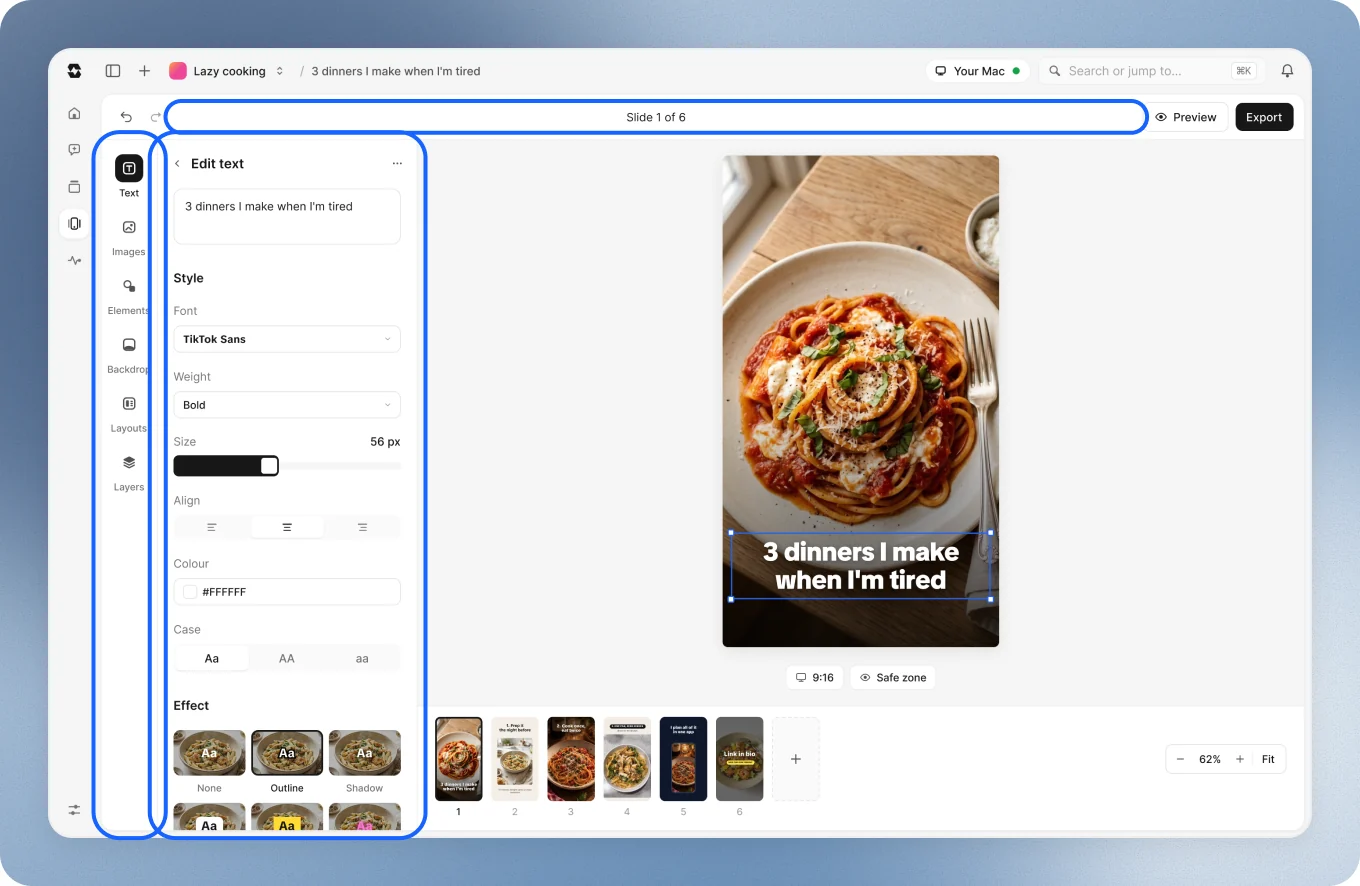
- On the left, the tools: Text, Images, Elements, Backdrop, Layouts and Layers.
- Next to them, the options for whatever you select.
- In the middle, the slide. Its size is in the chip under it.
- At the bottom, your slides.
- At the top, Undo and Redo, then Preview and Export.
Text
Press Text to add a heading, a subheading or body text, or start from one of the Styles that work on TikTok: Classic, Card, Highlight, Impact, Neon, Typewriter and more. Double-click any text to type.
Select it to change:
- Font, Weight, Size and Colour, or a gradient.
- Align, Case and its Position on slide.
- Effect: bend it, or give it a chalk or crayon texture.
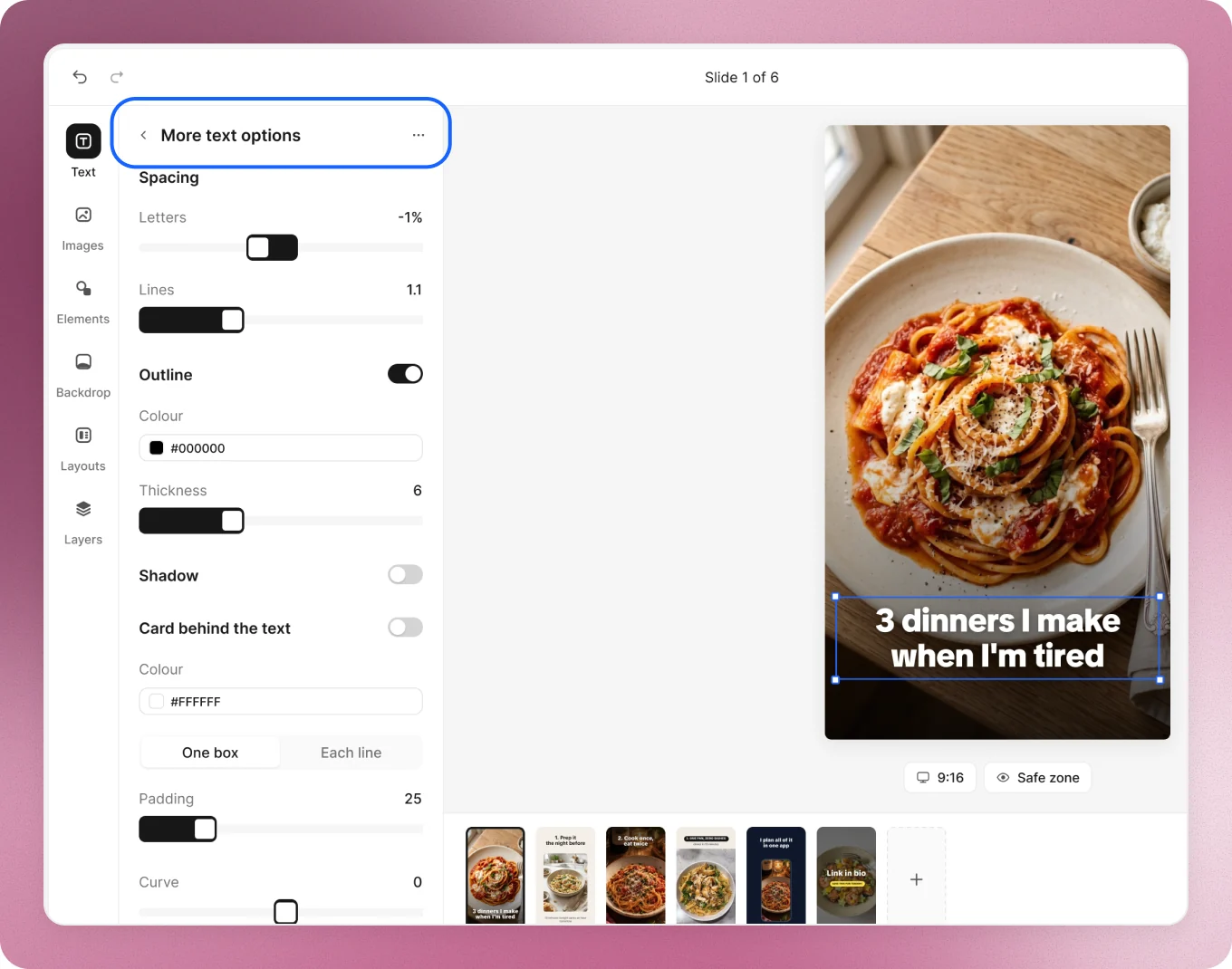
- More text options: an outline, a shadow, a card behind the text, hollow letters, spacing and opacity.
Select a few words to give only them another colour, weight or font.
Photos
Press Images:
- Search: photos by what they show.
- Uploads: drop in your own, like your app’s screenshots.
- In this slideshow: every picture already used, to use again.
- Generate: describe a photo at the bottom, pick its shape, and it lands on the slide.
Select a photo to change:
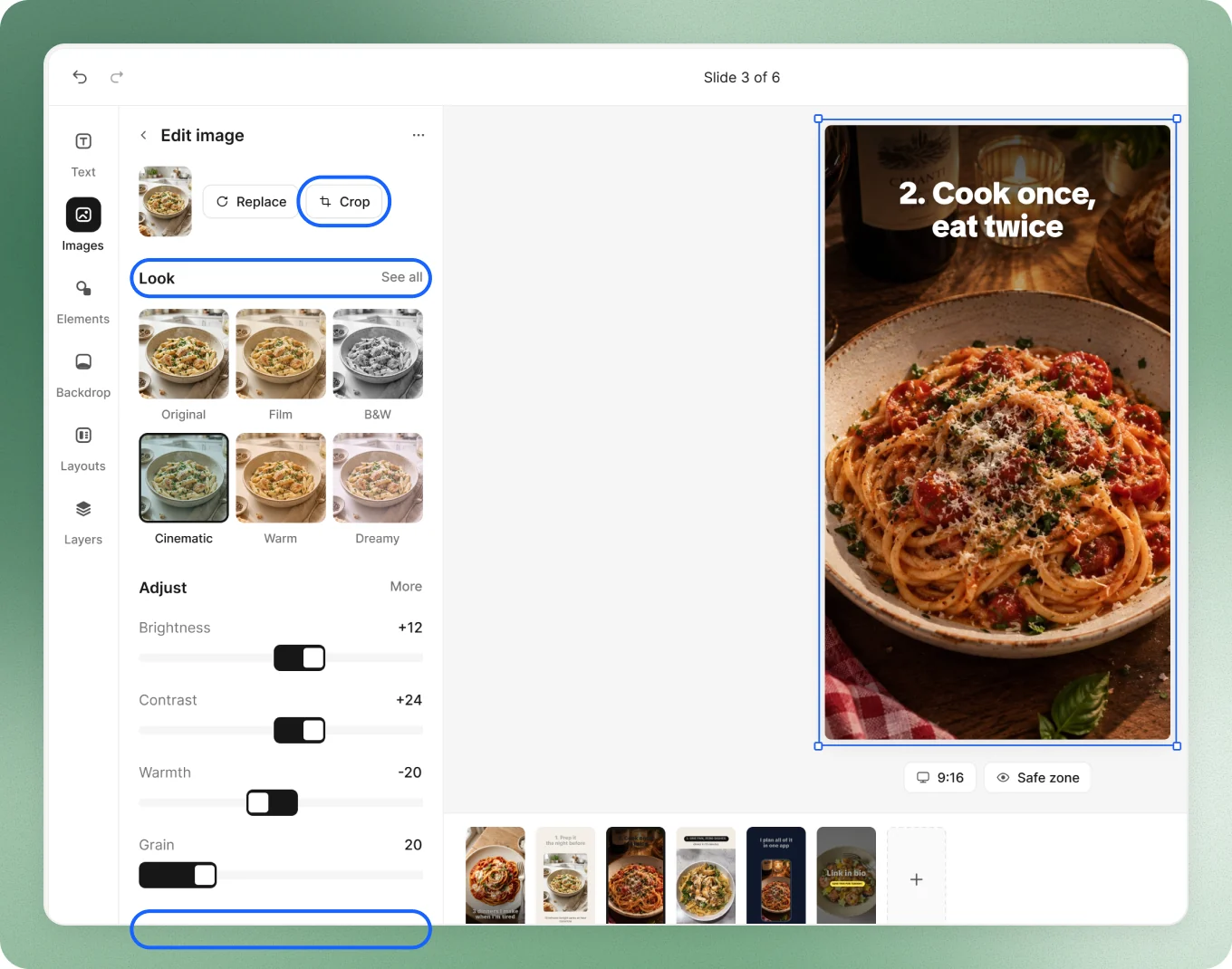
- Crop: free, 1:1, 4:5, 9:16 or Fill the slide. Double-click a photo to crop it by hand.
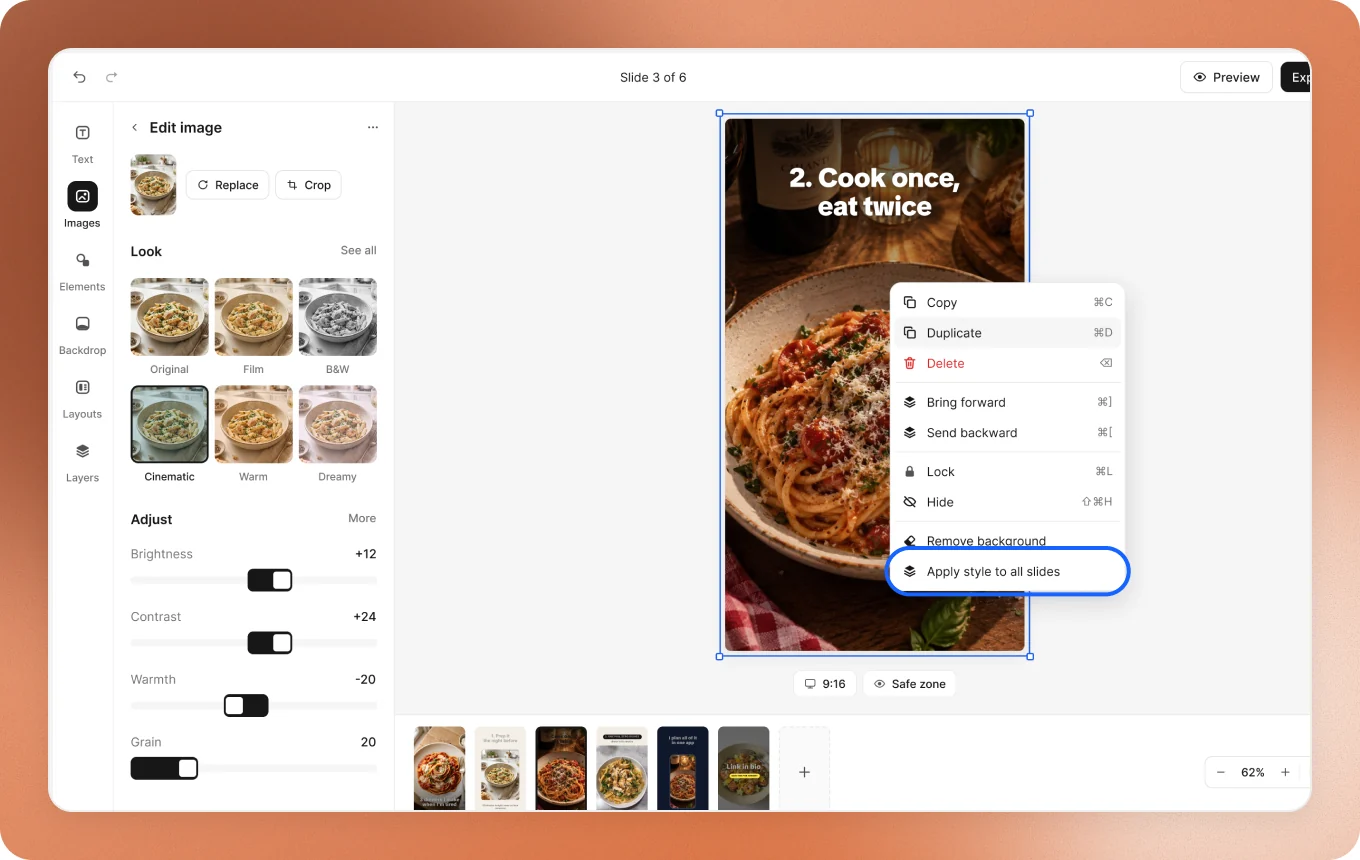
- Look: Film, B&W, Cinematic, Warm or Dreamy, as strong as you like.
- Adjust: exposure, contrast, warmth, grain, vignette and more.
- Image effects: a shape, a border, a drop shadow, glow, duotone and more.
- AI tools: Remove background cuts the subject out, Upscale makes a soft photo sharp, Generate a new photo makes one from your words.
Generate, Remove background and Upscale each use one image credit.
Shapes, backdrop and layouts
- Elements: shapes, arrows and lines, and stickers. Press P to draw your own shape. Select one to change its fill, outline and corners, or make it look hand-drawn.
- Backdrop: a colour, a gradient, a texture or a photo behind everything. Blur the photo to make the words stand out.
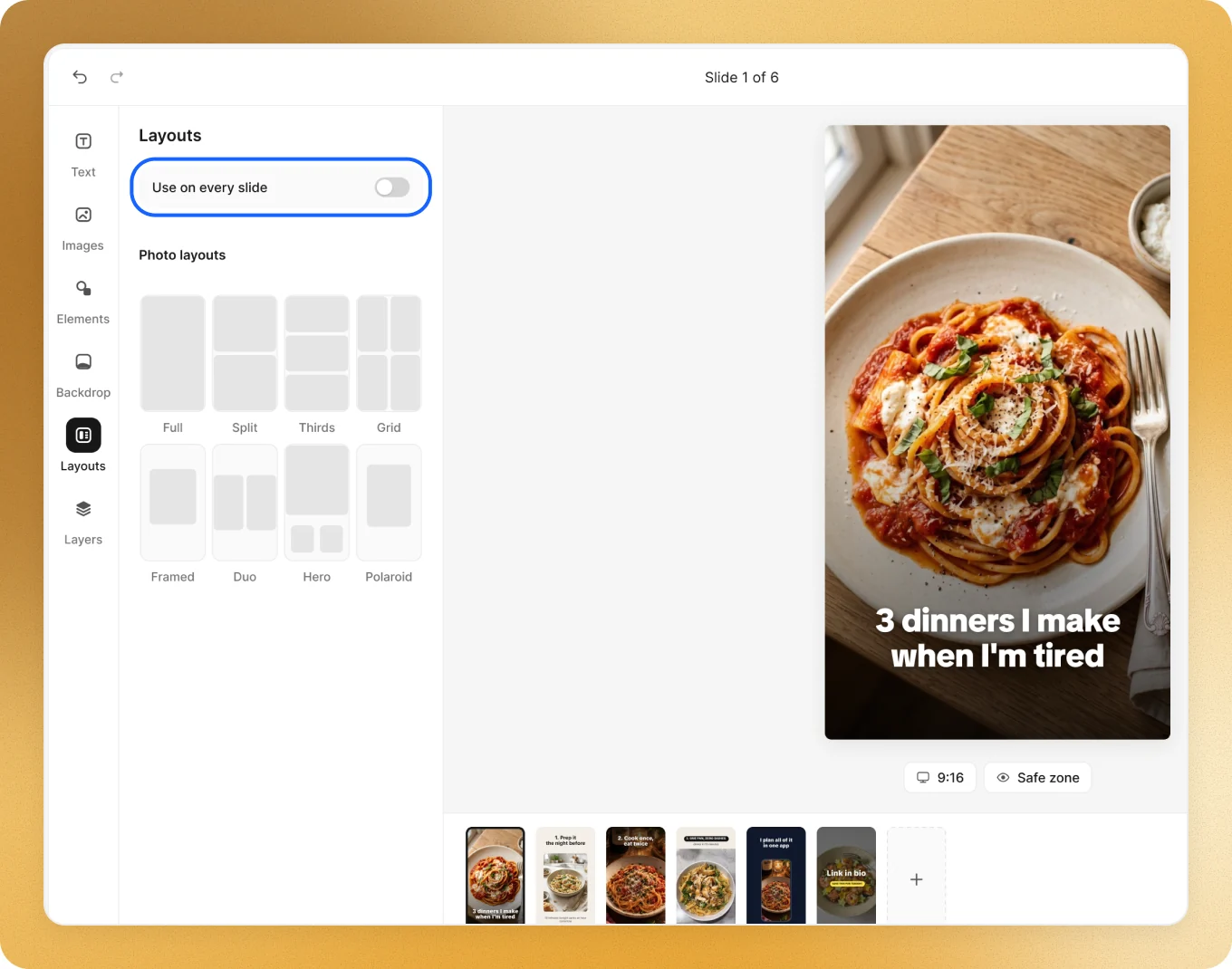
- Layouts: Full, Split, Thirds, Grid, Framed, Duo, Hero or Polaroid. Turn on Use on every slide for the whole slideshow.
- Layers: everything on the slide, front first. Drag to reorder, hide or lock any of them.
Many things at once
Drag a box over a few things to select them all. Then align them, spread them with even gaps, or move them together.
Right-click anything to copy, duplicate, bring it forward, lock or hide it, remove a photo’s background, or Apply style to all slides.
Slides
- Press + at the bottom to add a slide. Drag slides to reorder them. Right-click one to duplicate or delete it.
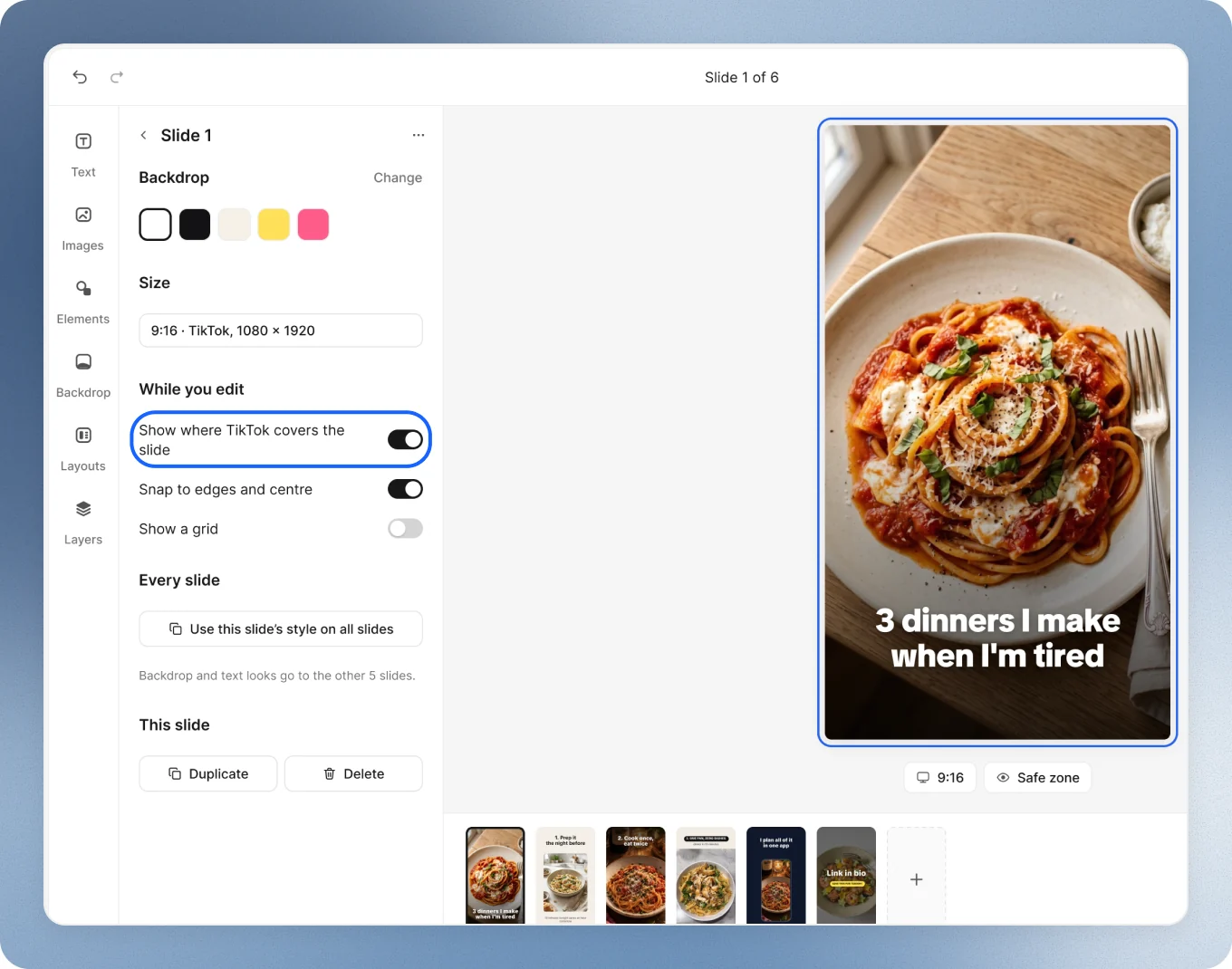
- Click an empty part of the slide for its size, its backdrop and the helpers while you edit: a grid, snapping to edges and centre, and Show where TikTok covers the slide.
See it as a post, then post it
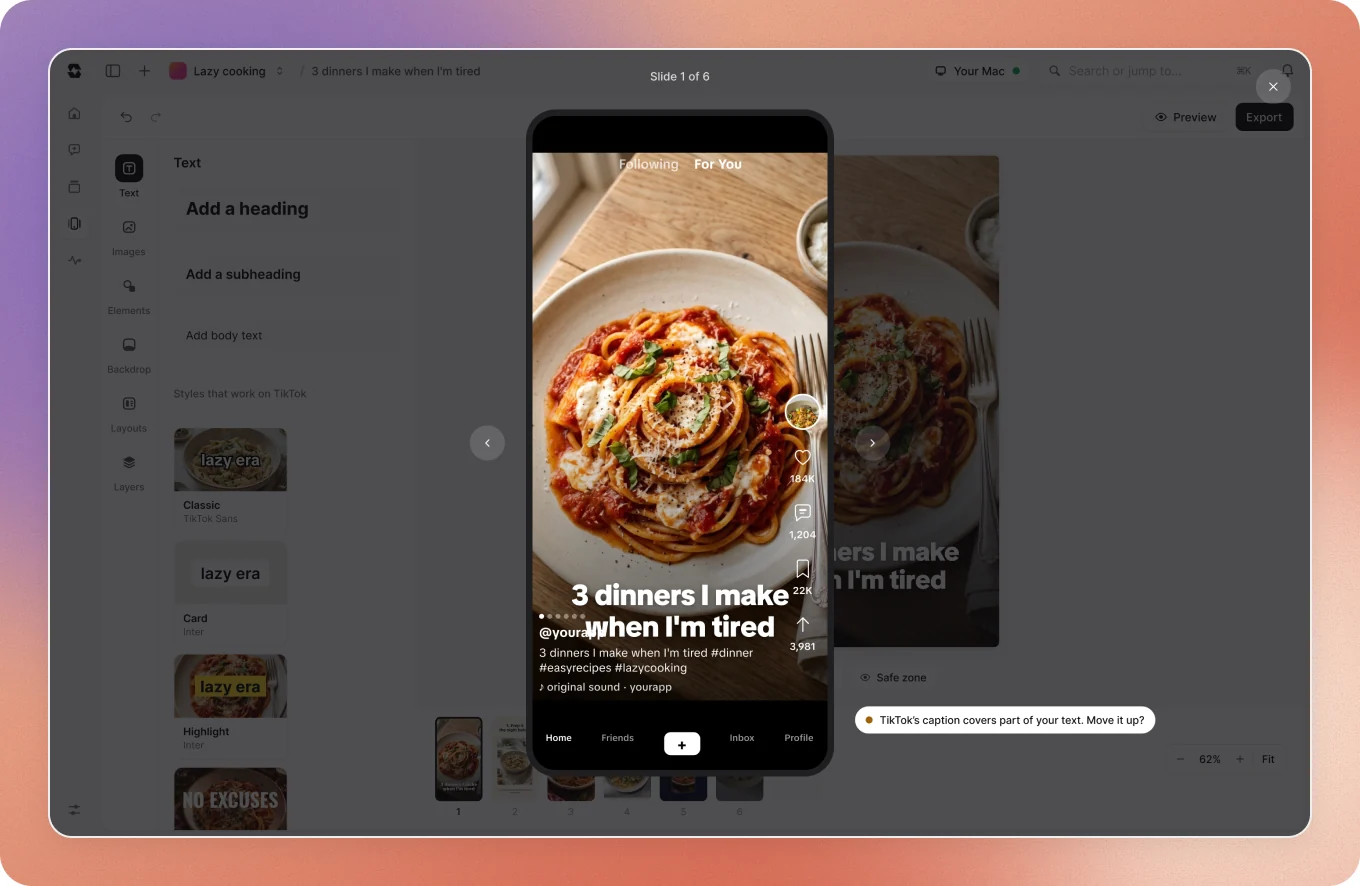
- Press Preview to see it as it will look on TikTok, slide by slide.
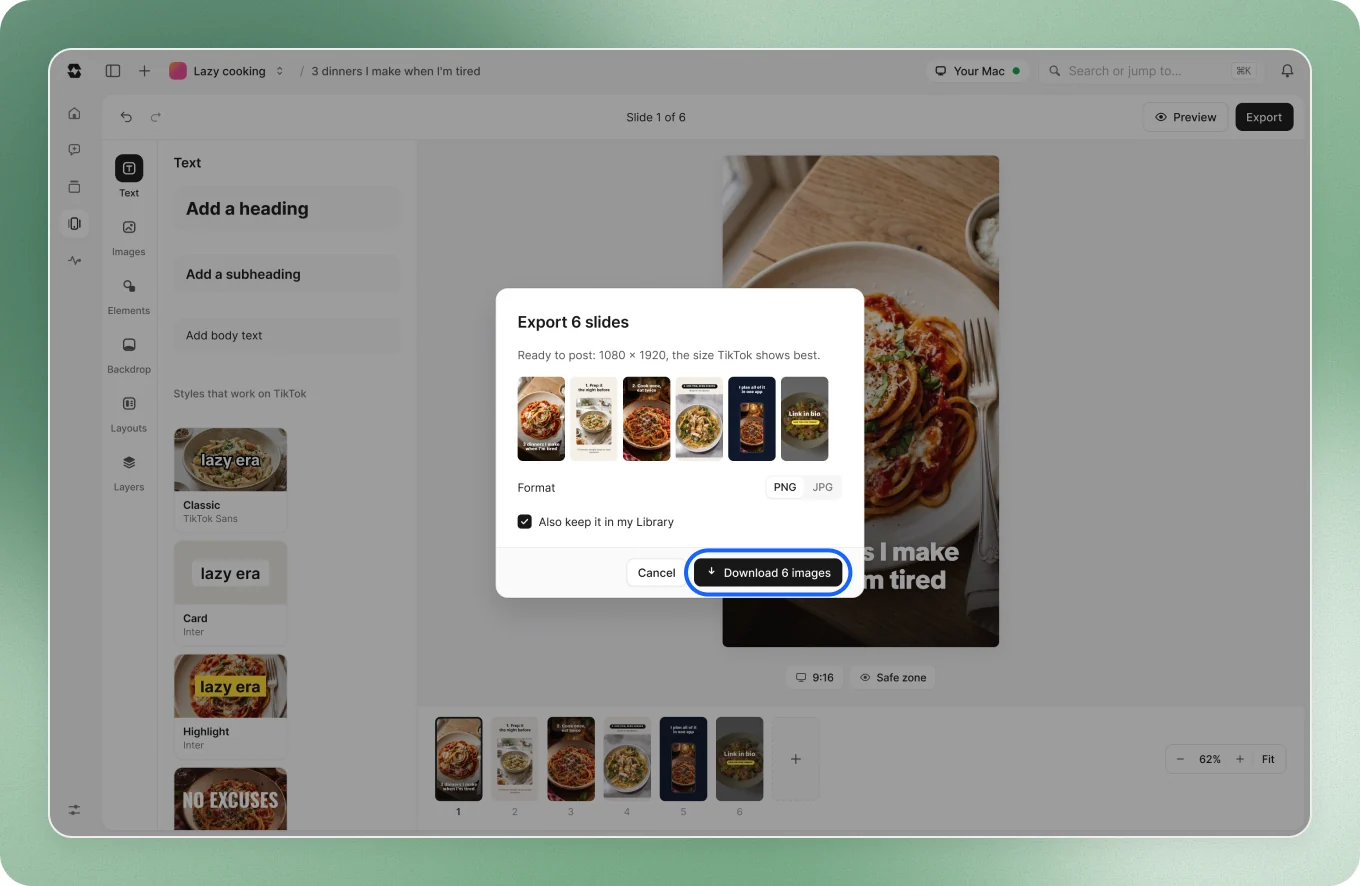
- Press Export, pick PNG or JPG, then Download. Each slide is 1080 × 1920, the size TikTok shows best.
- Post them on TikTok as a photo slideshow.
Good to keep in mind
- Everything saves by itself. ⌘Z undoes, ⇧⌘Z redoes.
- Your agent sees what you changed. Edit by hand, then ask it to carry on: