 Set up ScrollShow · 1 min
Connect your agent
Use ScrollShow right inside the agent you already use: Claude, ChatGPT, Codex, Cursor, Grok, OpenClaw, Hermes Agent, or any agent that supports MCP. Ask in plain words, and it finds the accounts going viral in your niche and studies why they work. You do this once, and it takes a minute.
On Lifetime, you do this while signing up, in the same window. Start at Pick your agent.
Open step 1
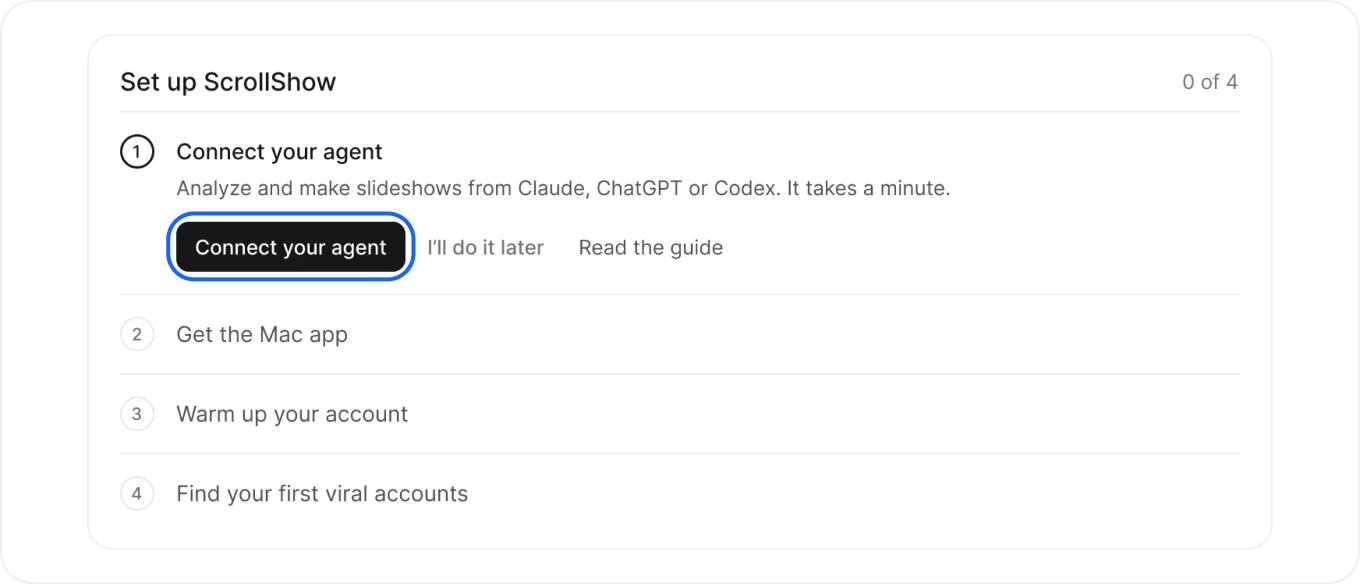
On Home, Set up ScrollShow opens on its first step. Press Connect your agent.
Pick your agent
Choose the one you use. Claude is picked to start with, and the steps for the one you pick show up right below.
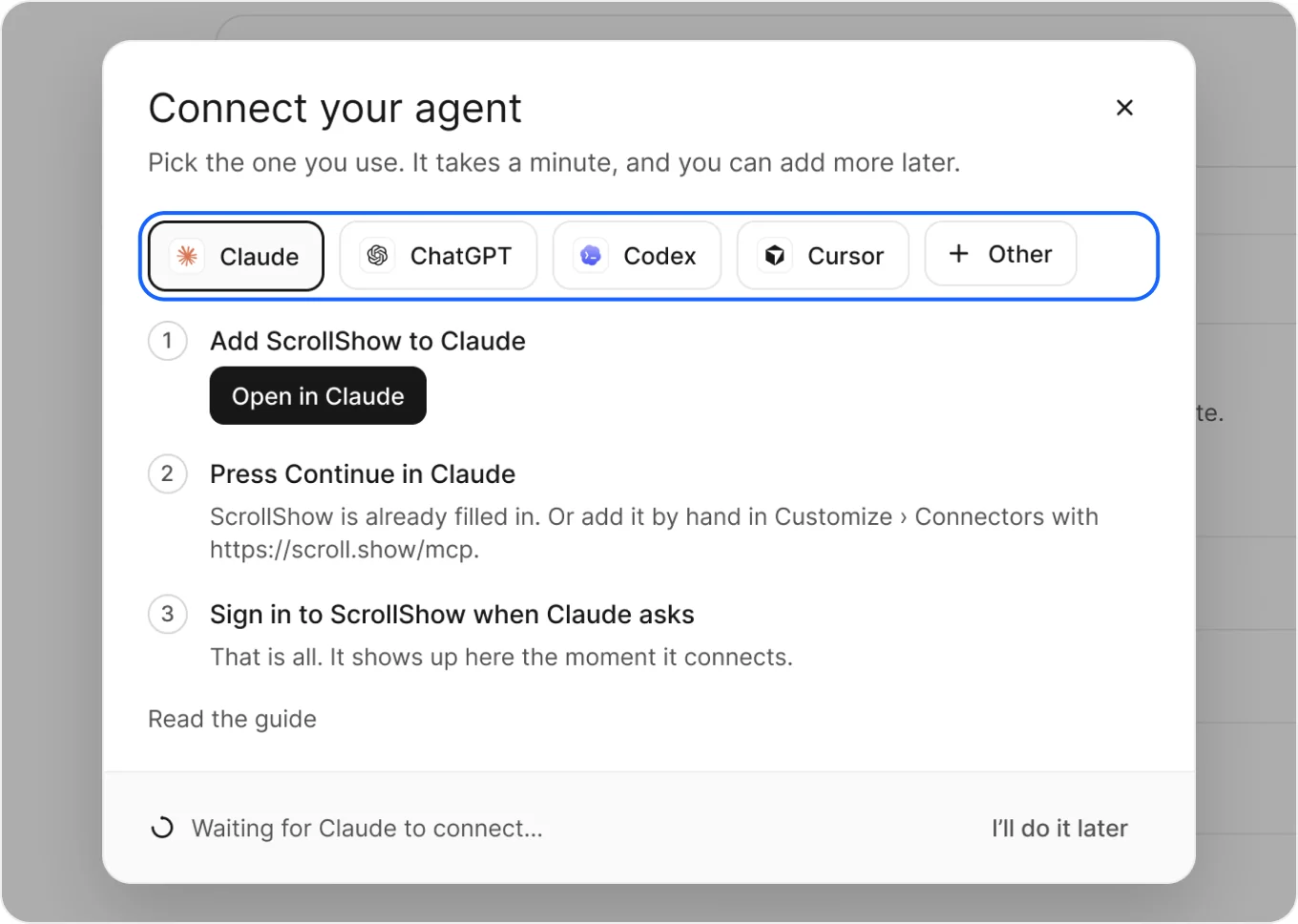
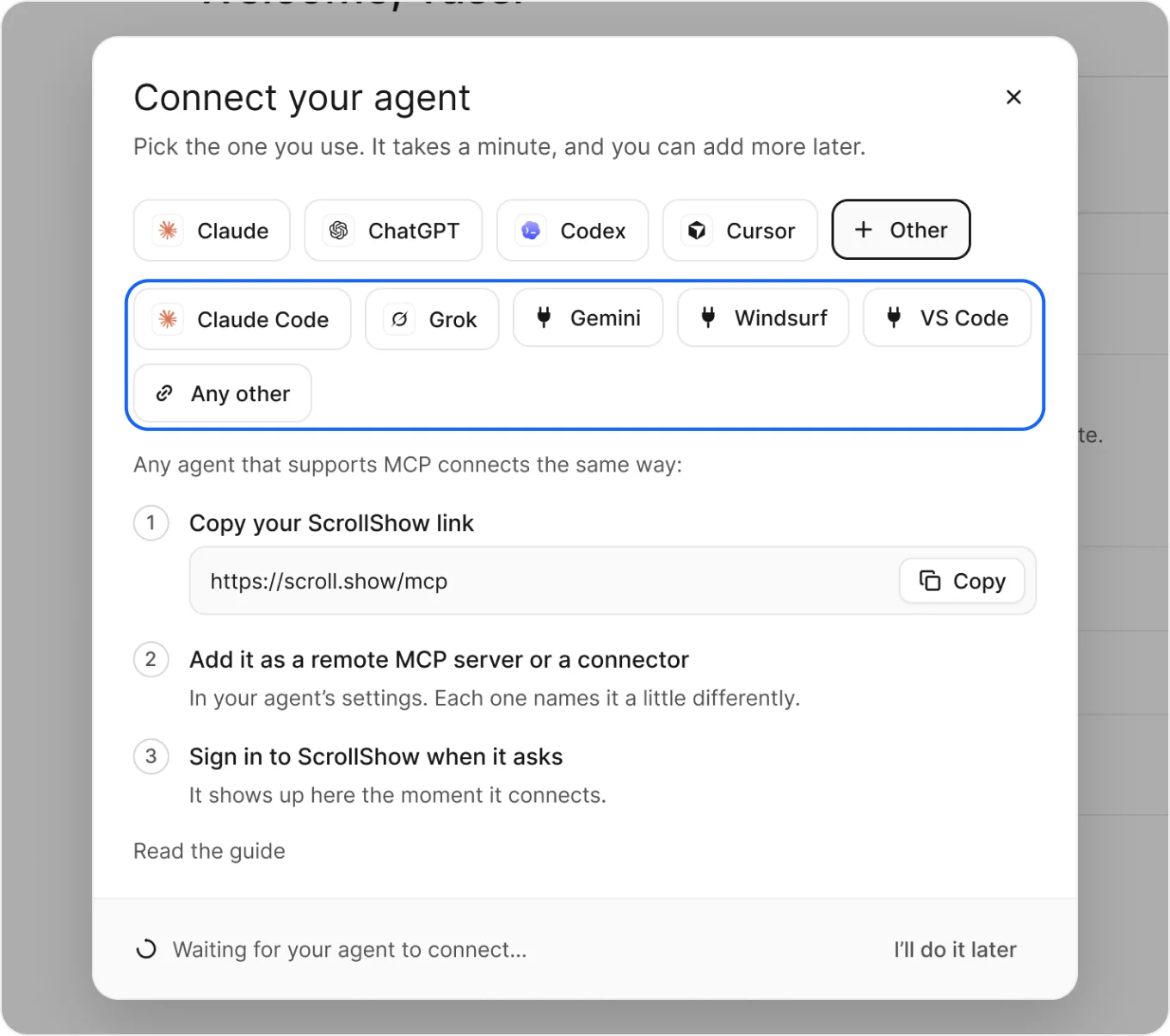
Using another one? Press Other for Claude Code, Grok, Gemini, Windsurf, VS Code, OpenClaw, Hermes Agent or any agent that supports MCP. Each one shows its own steps.
Follow its steps
Each agent has a few steps of its own. They all end the same way: you sign in to ScrollShow from your agent.
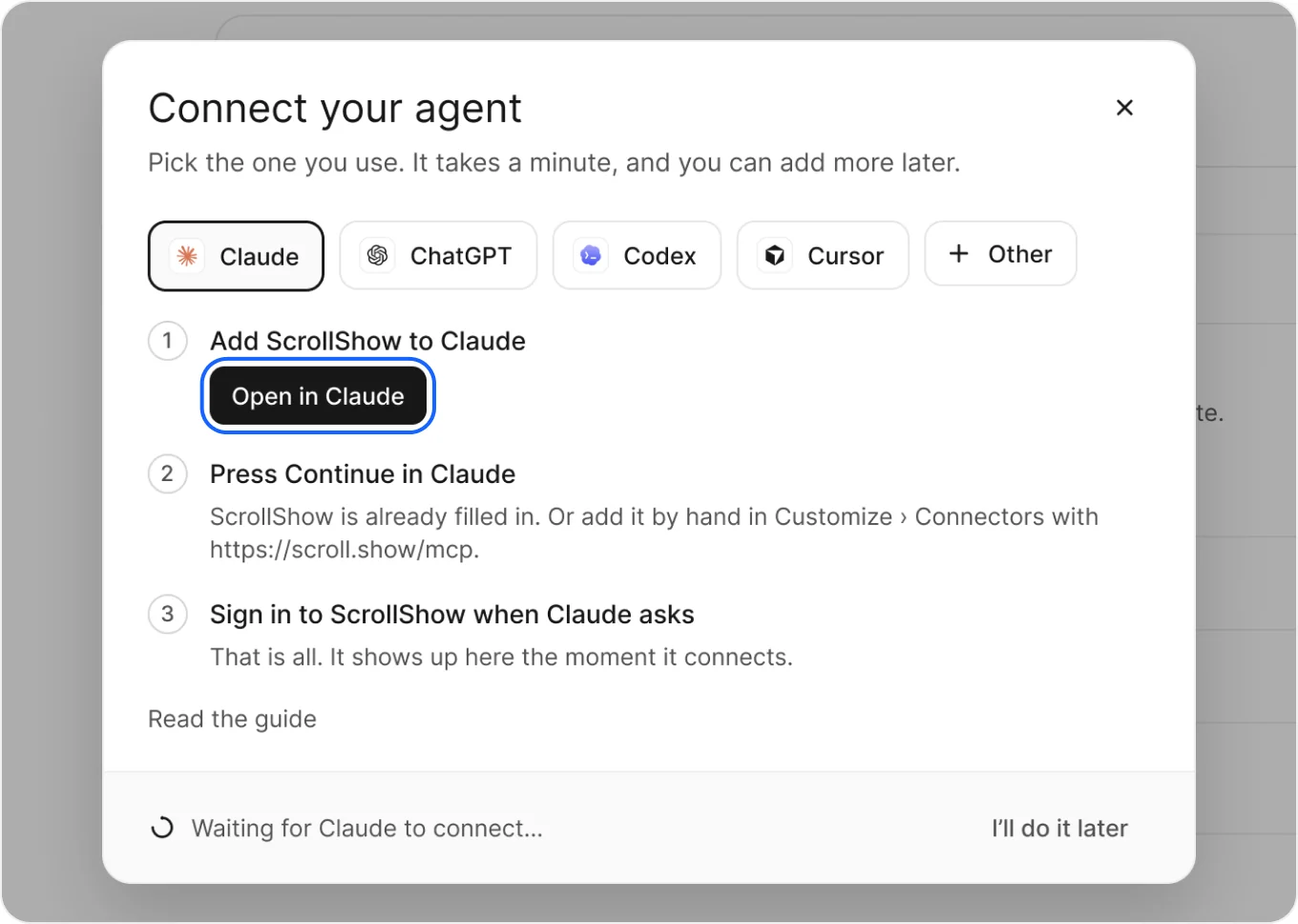
Claude
- Press Open in Claude. Claude opens with ScrollShow already filled in.
- Press Continue in Claude.
- Sign in to ScrollShow when Claude asks.
ChatGPT
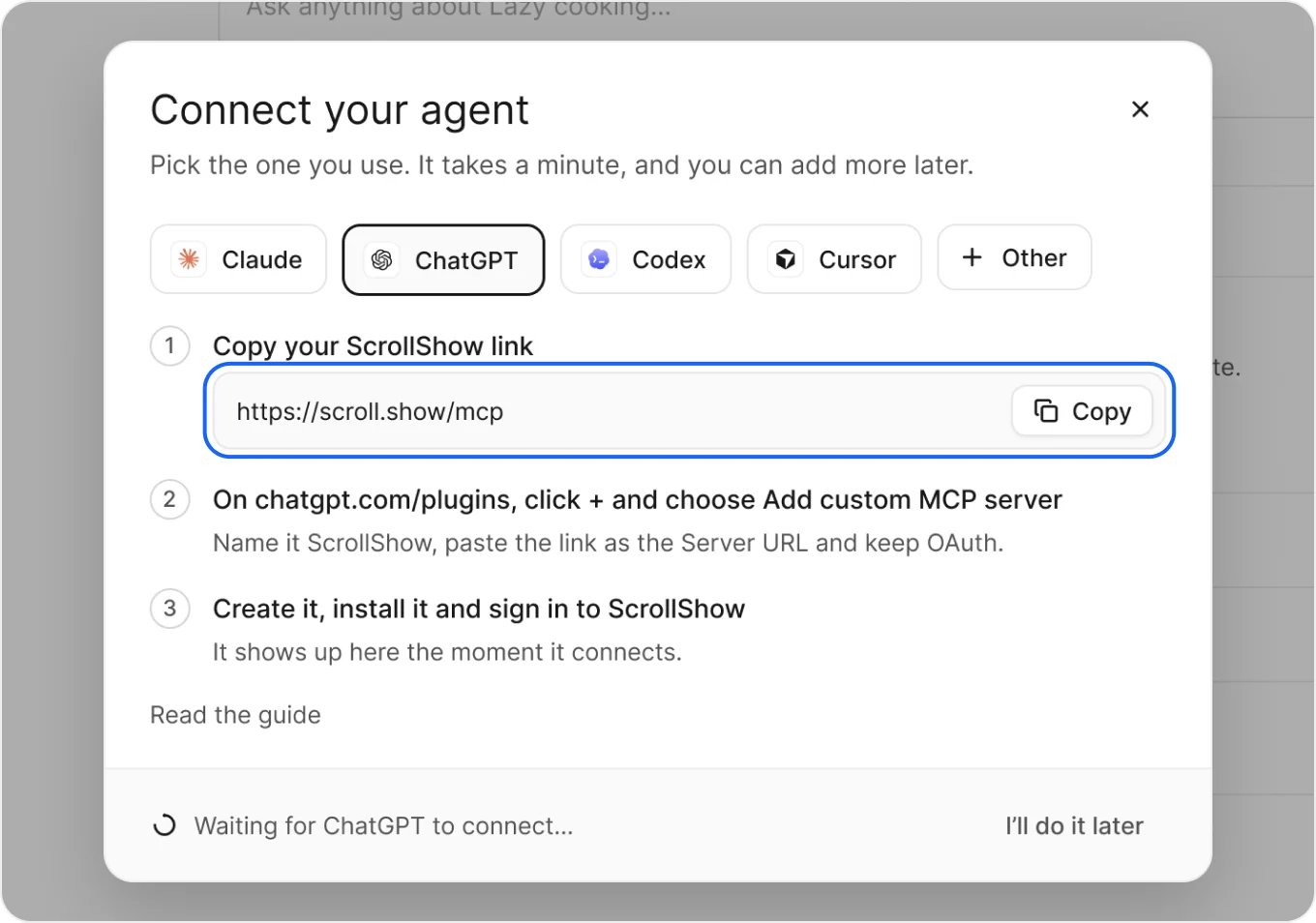
- Press Copy next to your ScrollShow link.
- On chatgpt.com/plugins, press + and choose Add custom MCP server.
- Name it ScrollShow, paste the link as the Server URL and keep OAuth.
- Create it, install it and sign in to ScrollShow.
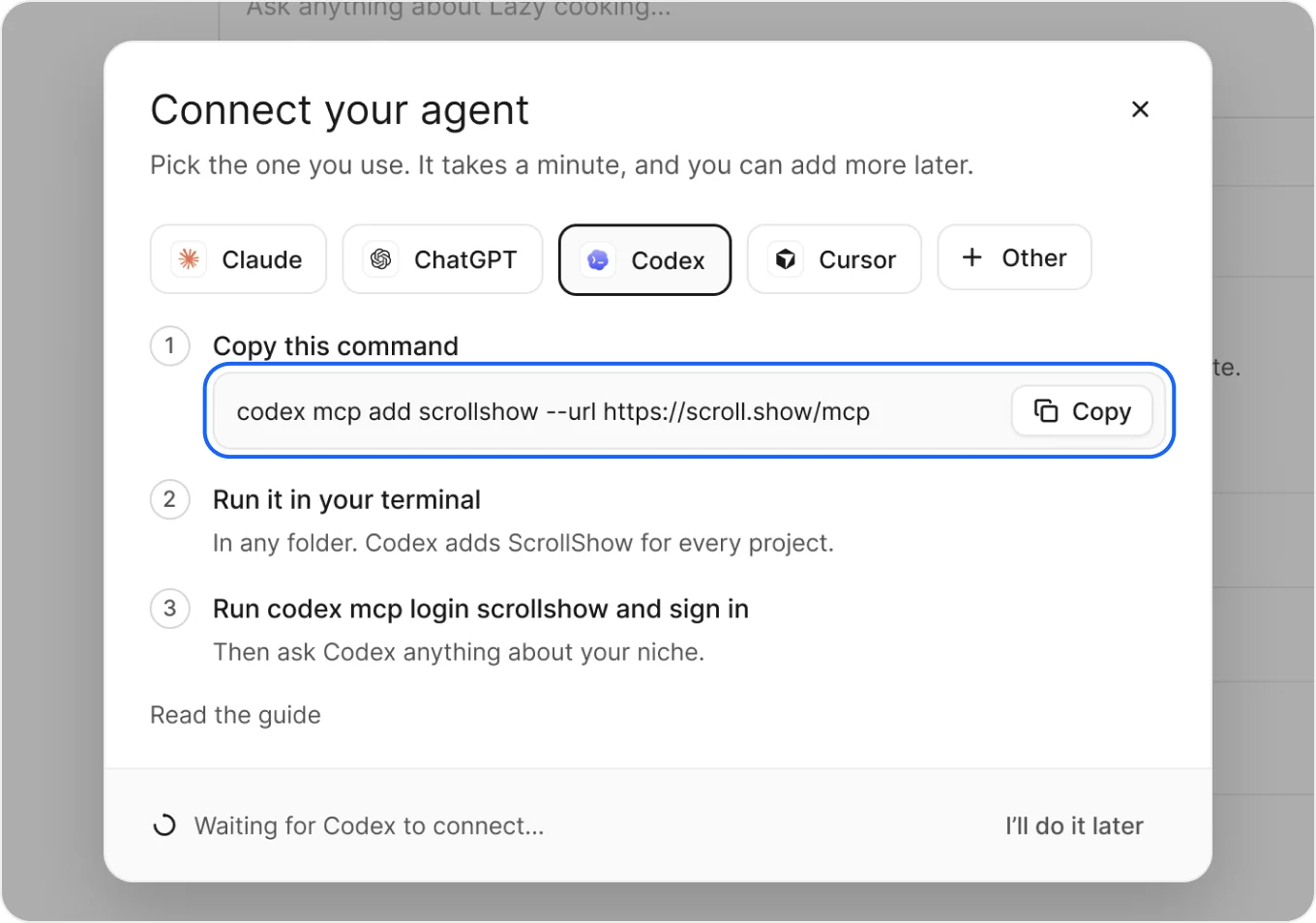
Codex
- Press Copy next to the command.
- Paste it in your terminal and run it, in any folder.
- Run codex mcp login scrollshow and sign in to ScrollShow.
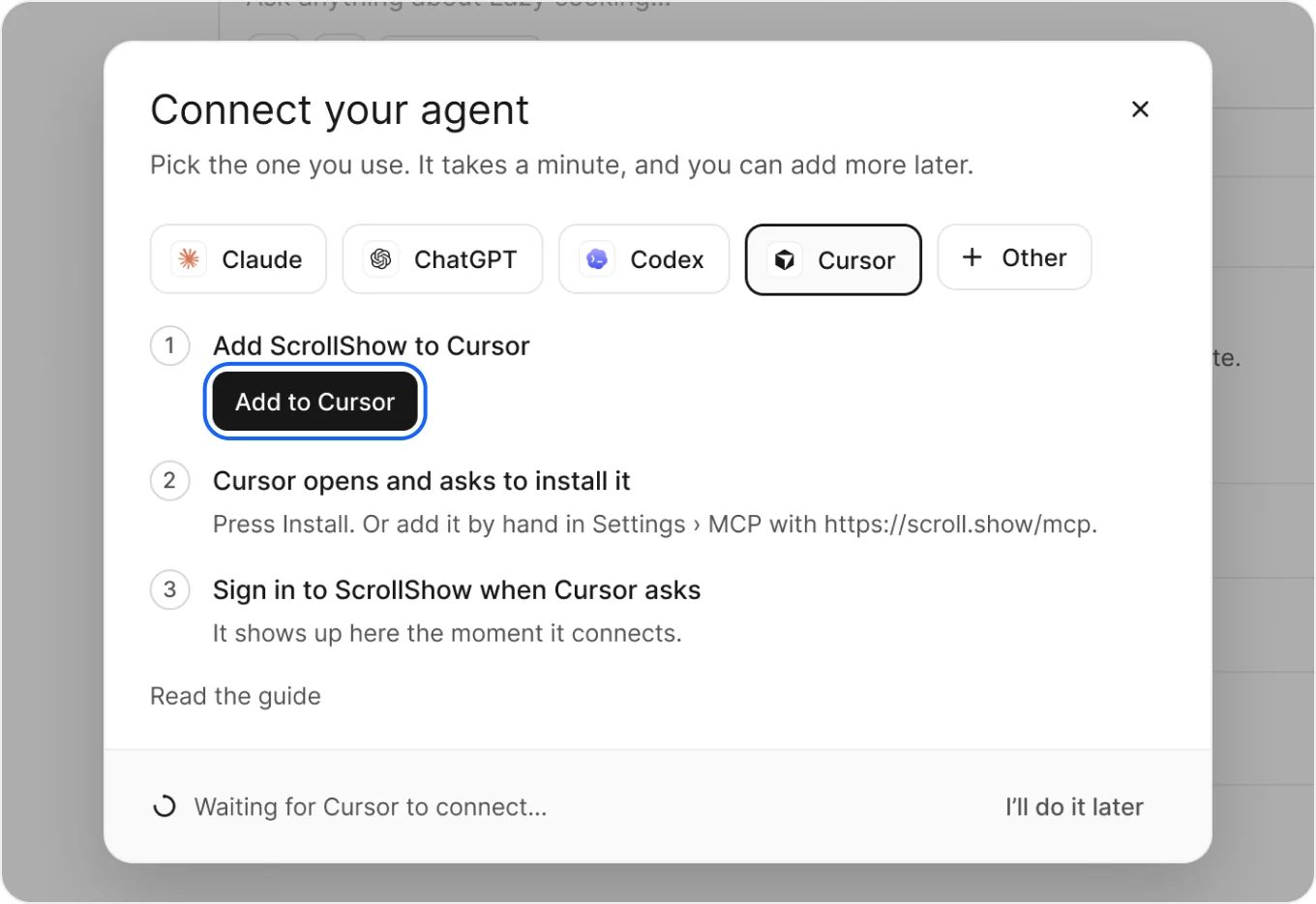
Cursor
- Press Add to Cursor.
- Cursor opens. Press Install.
- Sign in to ScrollShow when Cursor asks.
Any other agent
- Press Other and pick yours, or Any other.
- Press Copy next to your ScrollShow link.
- In your agent’s settings, add it as a remote MCP server or a connector.
- Sign in to ScrollShow when it asks.
You’re connected
Nothing else to do. The window notices by itself and shows Claude is connected, with your agent’s logo. Step 1 is done.
Press Next: get the Mac app to go on.
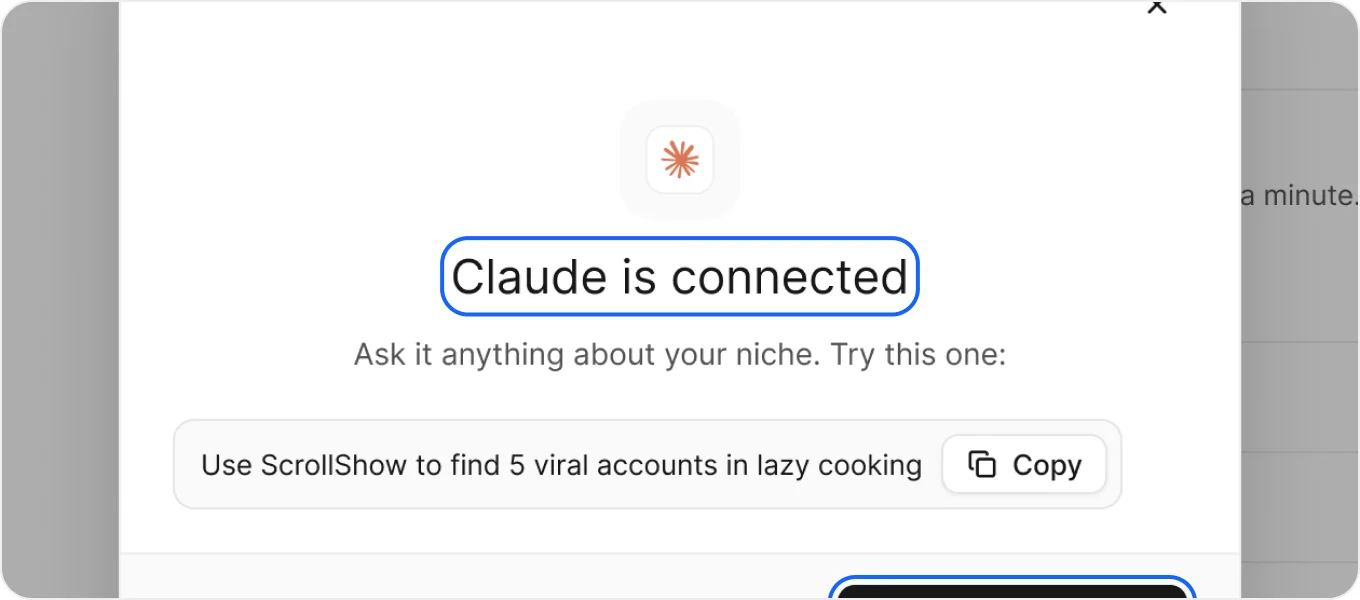
The ask it suggests needs the Mac app, so keep it for after the next step.
Good to keep in mind
- Still says Waiting for Claude to connect? Finish signing in to ScrollShow in your agent. The window checks on its own, so you can leave it open.
- Closed the window? No problem. Step 1 ticks itself as soon as your agent connects.
- Not now? Press I’ll do it later on step 1. It waits there, and Do it now brings it back.
- On your phone? Tap your agent’s logo on step 1. Its steps open right there.
- Want more than one agent? Connect the others any time from Settings › Agents.