 Set up ScrollShow · 2 min
Warm up your account
ScrollShow searches TikTok with an account of its own, made just for research. You make it in about 3 minutes. Then ScrollShow warms it up on its own for about an hour, so TikTok shows it what’s going viral in your niche.
Why it needs a warm-up
A brand-new TikTok account doesn’t know what it likes yet, so it gets shown a bit of everything.
The warm-up teaches it your niche: it searches it, reads the slideshows, likes the good posts and saves the best. After that, TikTok shows it the accounts and slideshows going viral in your niche, and those are what ScrollShow finds for you.
Open step 3
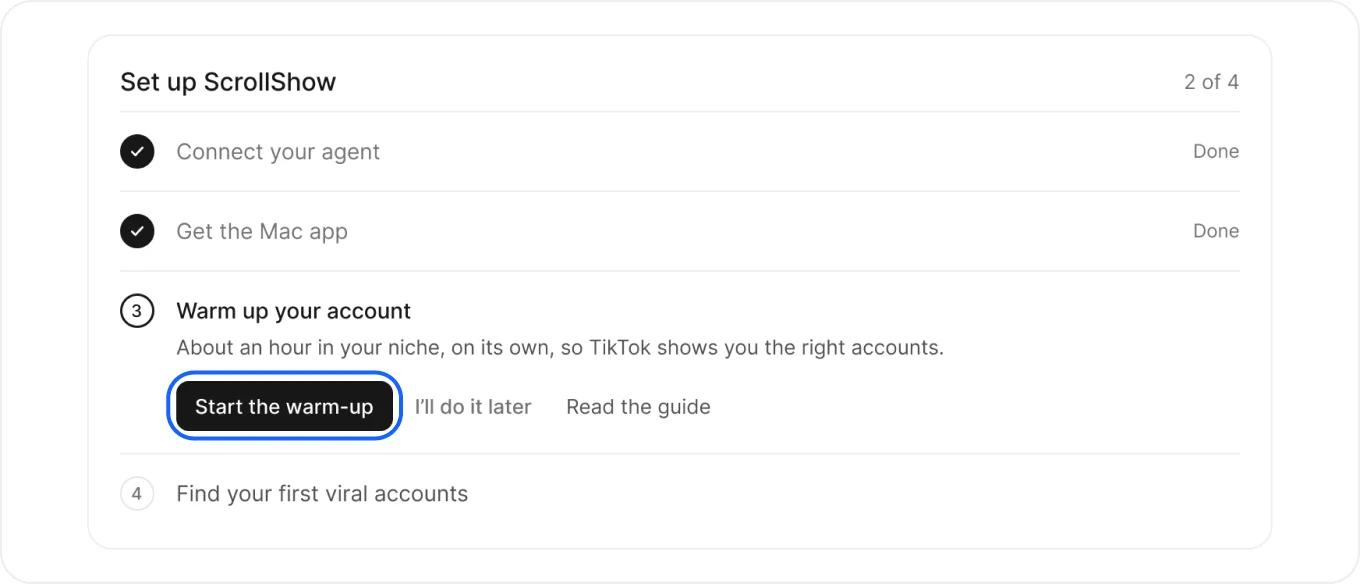
On Home, step 3 of Set up ScrollShow is open. Press Start the warm-up. The window shows its two parts: make the research account, then warm it up.
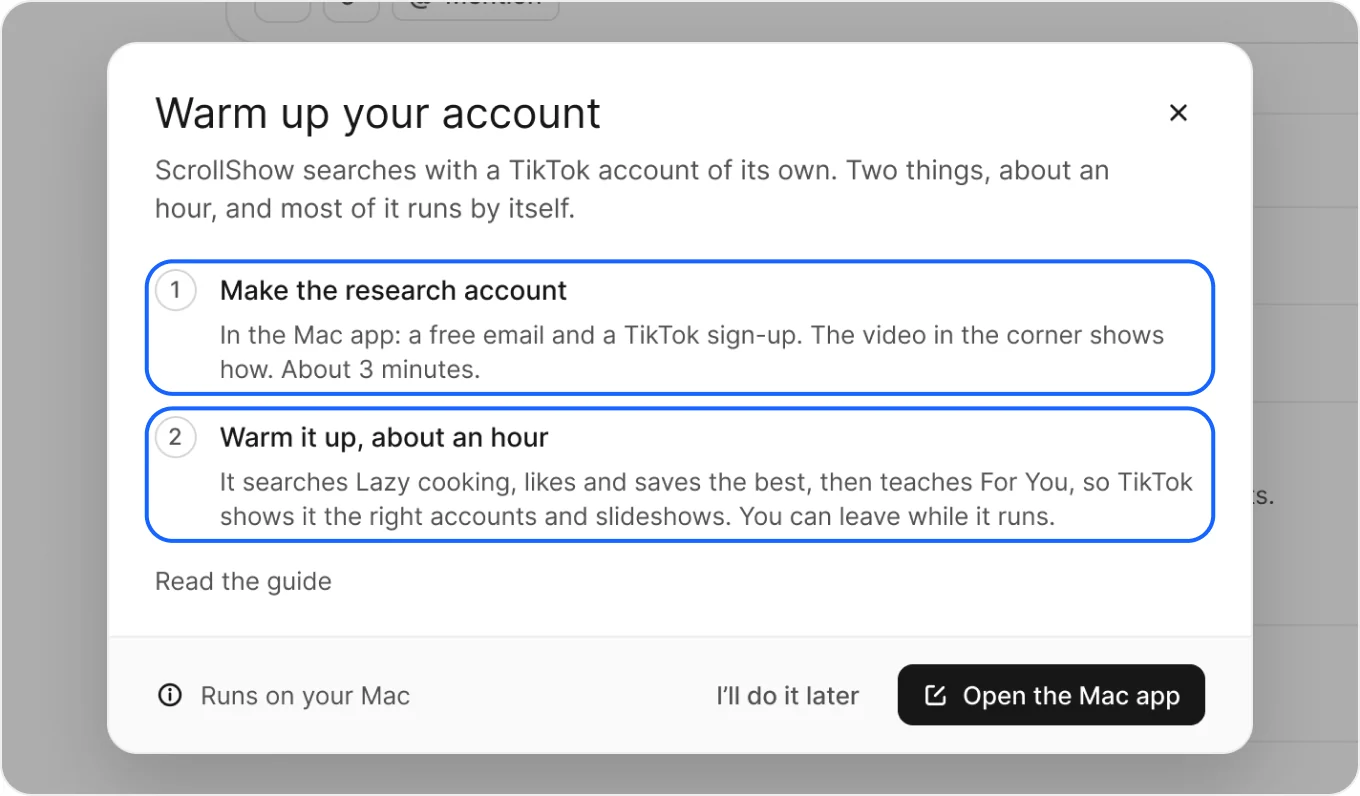
Make the research account
Press Open the Mac app. It opens on its own browser, ready for you. There you make a free Proton email, then sign up to TikTok with it. About 3 minutes.
Start the warm-up
Once you’re in on TikTok, the Mac app offers it in its corner: press Start the warm-up. You can also press it in step 3 here. Either one works.
While it runs
It takes about an hour and runs by itself, in four parts:
- Searching your niche, about 25 minutes. It searches like a fan would, reads slideshows through, likes the good posts and saves the best.
- Training For You, about 5 minutes. TikTok opens again, and it stays on the posts in your niche and passes on the rest.
- Searching slideshows, about 20 minutes. Slideshows above all, so For You learns to bring them too.
- Checking For You, about 5 minutes. One last look, so For You is mostly your niche.
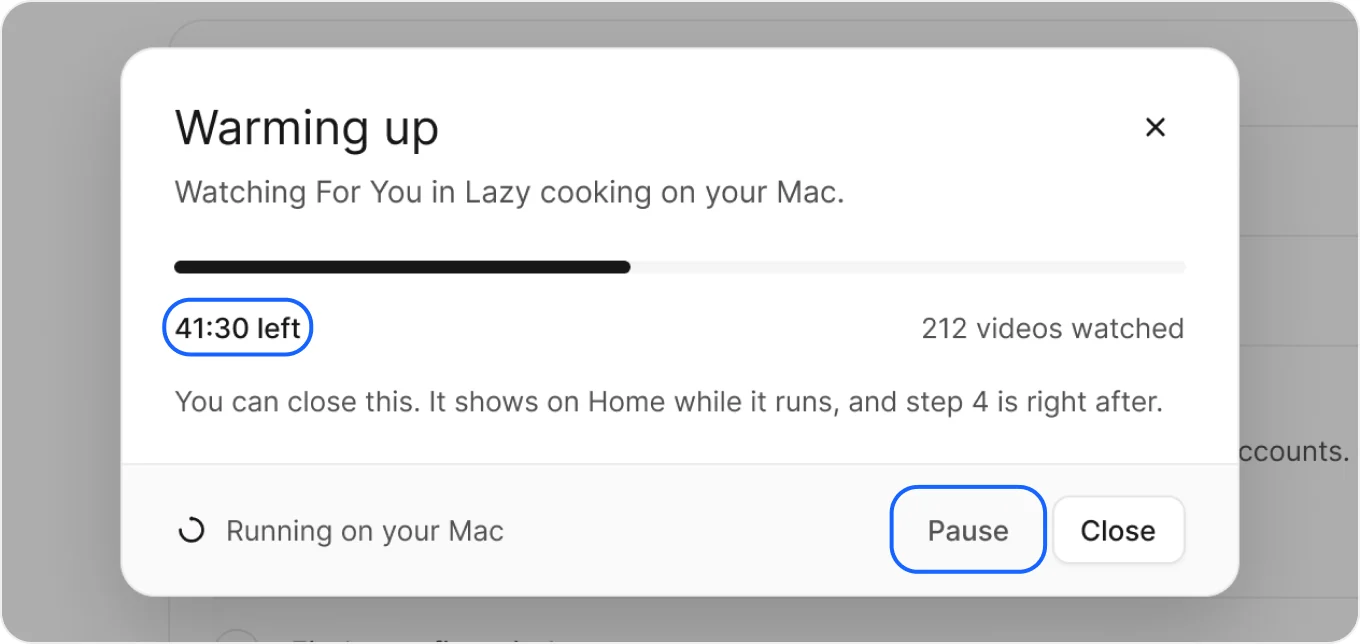
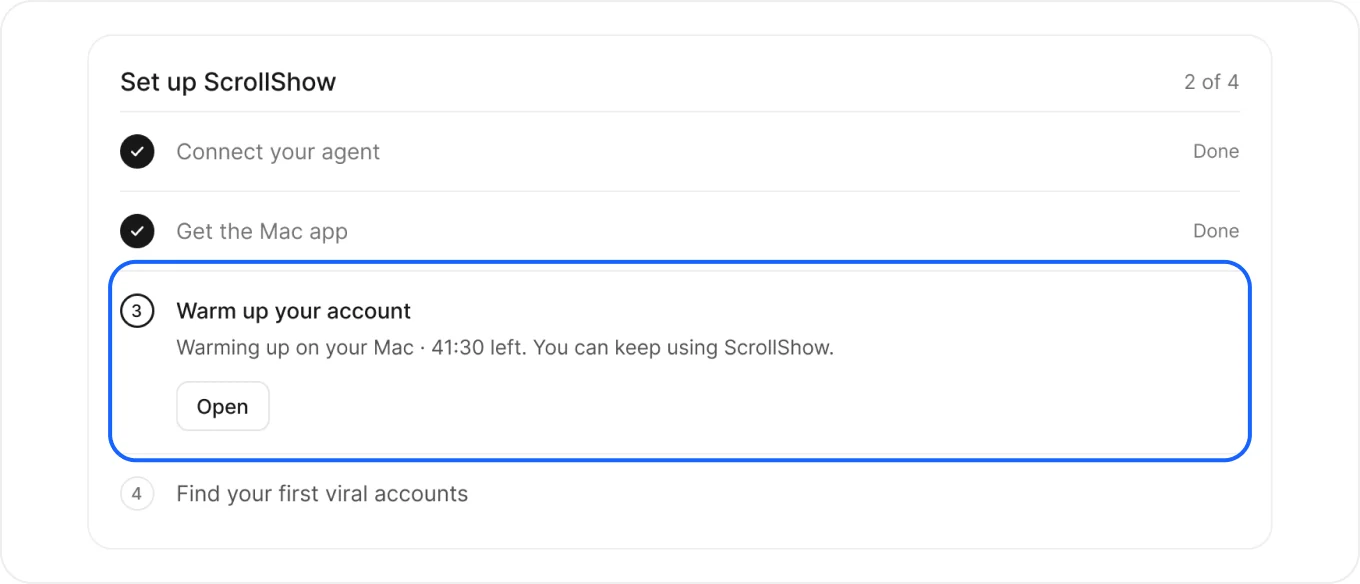
You don’t have to watch. Close the window and keep using ScrollShow: Home shows the time left. Just keep the Mac app open while it works.
It’s warmed up
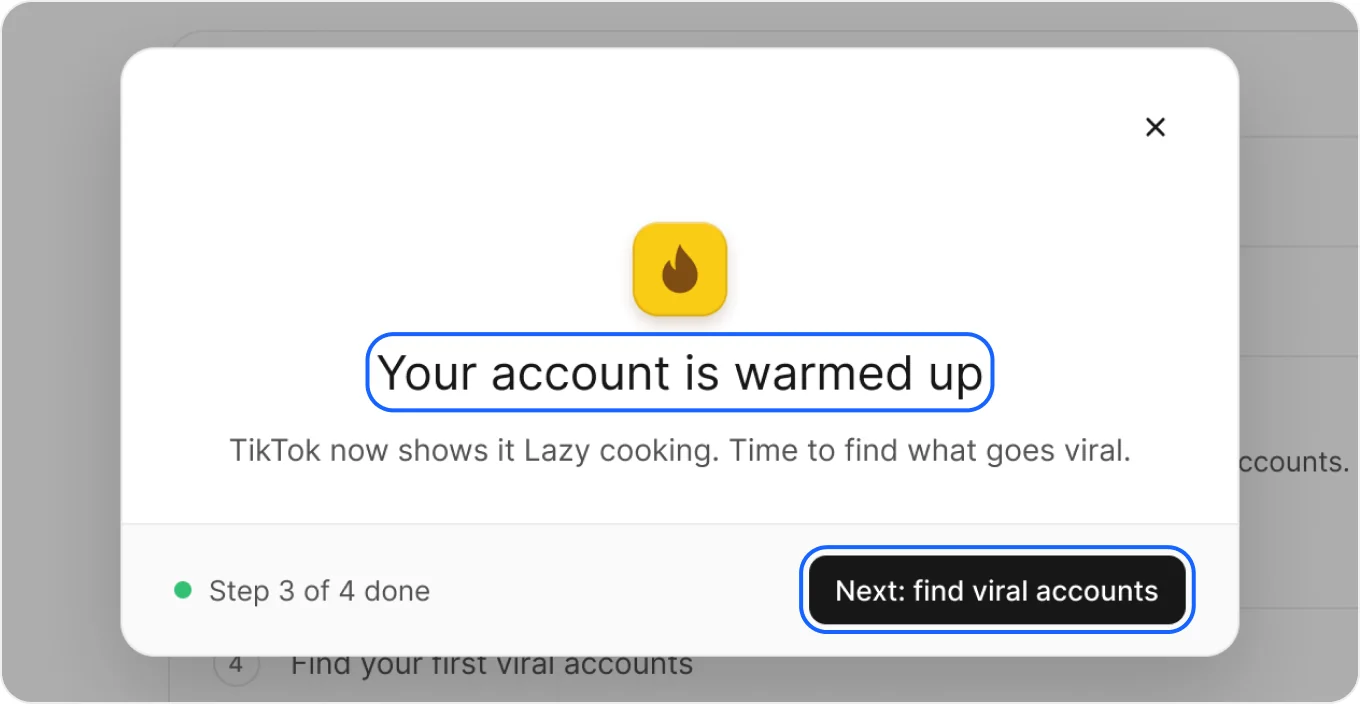
The window shows Your account is warmed up: TikTok now shows it your niche. Step 3 is done.
Press Next: find viral accounts to go on.
Good to keep in mind
- Started it with your Mac off? It begins as soon as ScrollShow opens there.
- Top says Mac on another account? Sign in to the Mac app with this account, and it starts.
- Not now? Press I’ll do it later. Step 3 waits for you.
- On your phone? Start it from step 3 and follow it from there. It runs on your Mac.